> ## Documentation Index
> Fetch the complete documentation index at: https://docs.snowbell.ai/llms.txt
> Use this file to discover all available pages before exploring further.

# 3.1 Create a prompt

### Step 1: Navigate to Prompts

Click "Prompts" in the left sidebar after choosing your project.
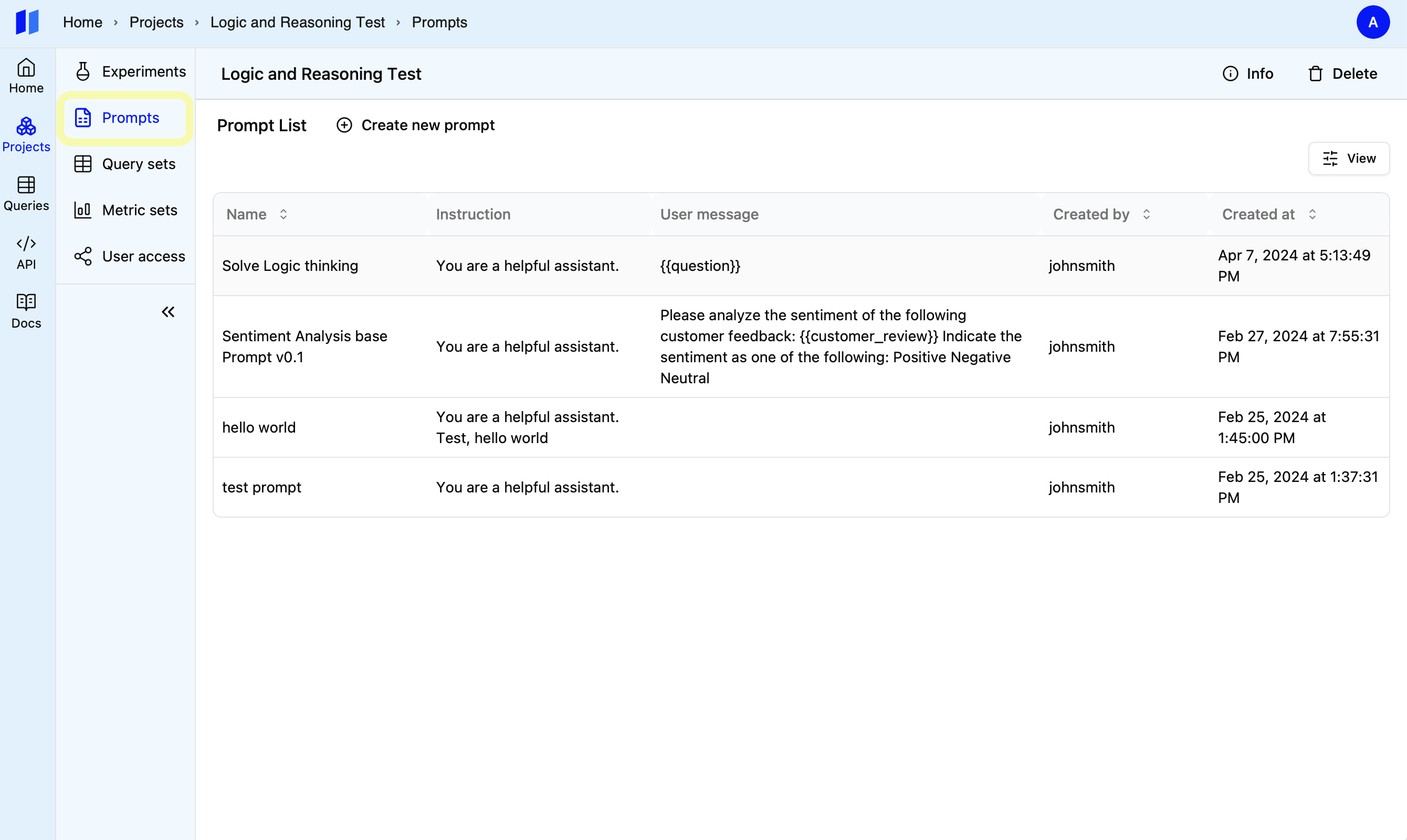
<img style={{ borderRadius: "0.5rem", border: "1px solid #E5E5E5" }} className="border-1 border-gray-600" src="https://mintcdn.com/snowbell-84/IqD-ZrpFGnQx3zFS/images/setup/prompt3.png?fit=max&auto=format&n=IqD-ZrpFGnQx3zFS&q=85&s=10934f4631962824f4ece90e1e59f0a2" width="2680" height="1600" data-path="images/setup/prompt3.png" />

### Step 2: Create a New Prompt

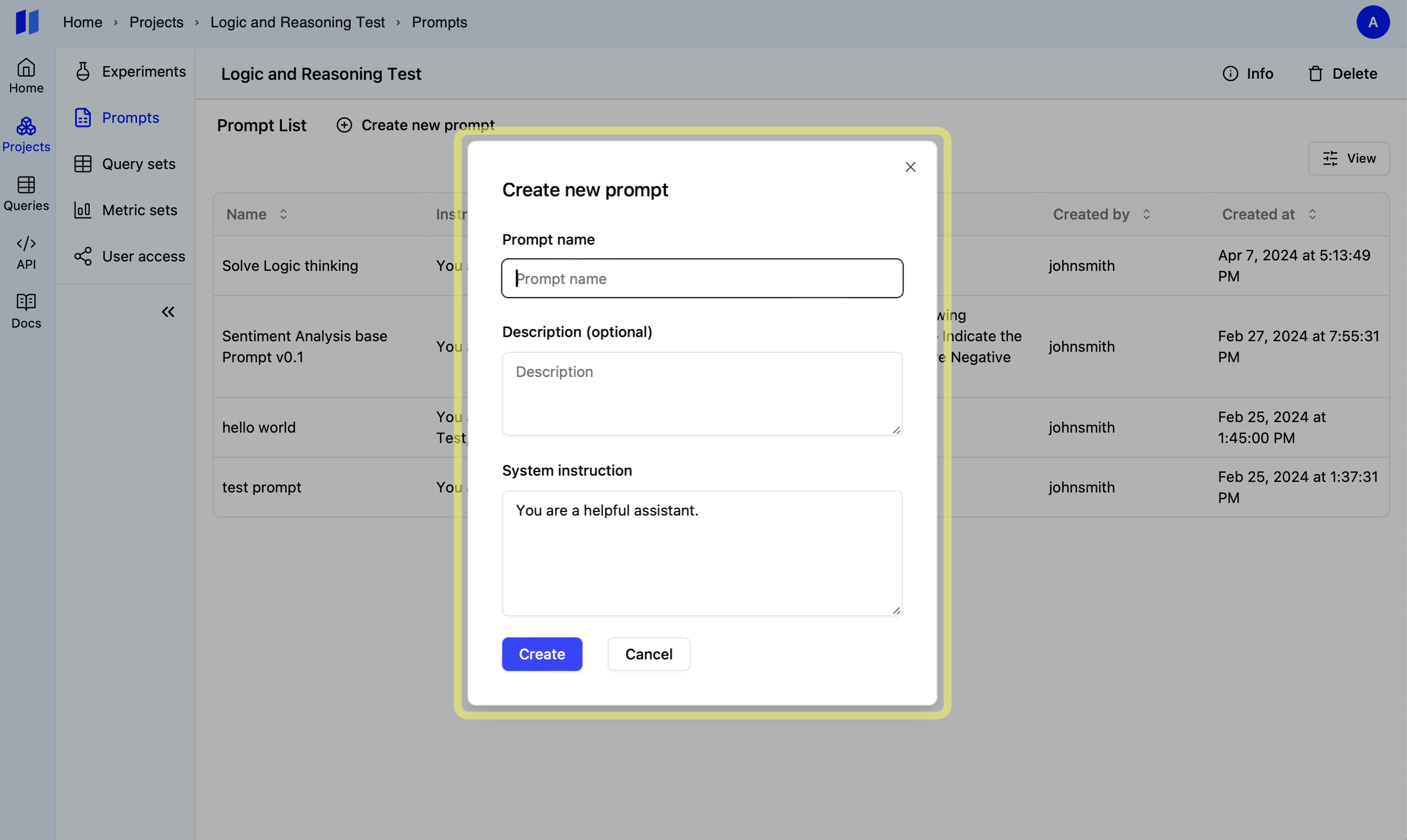
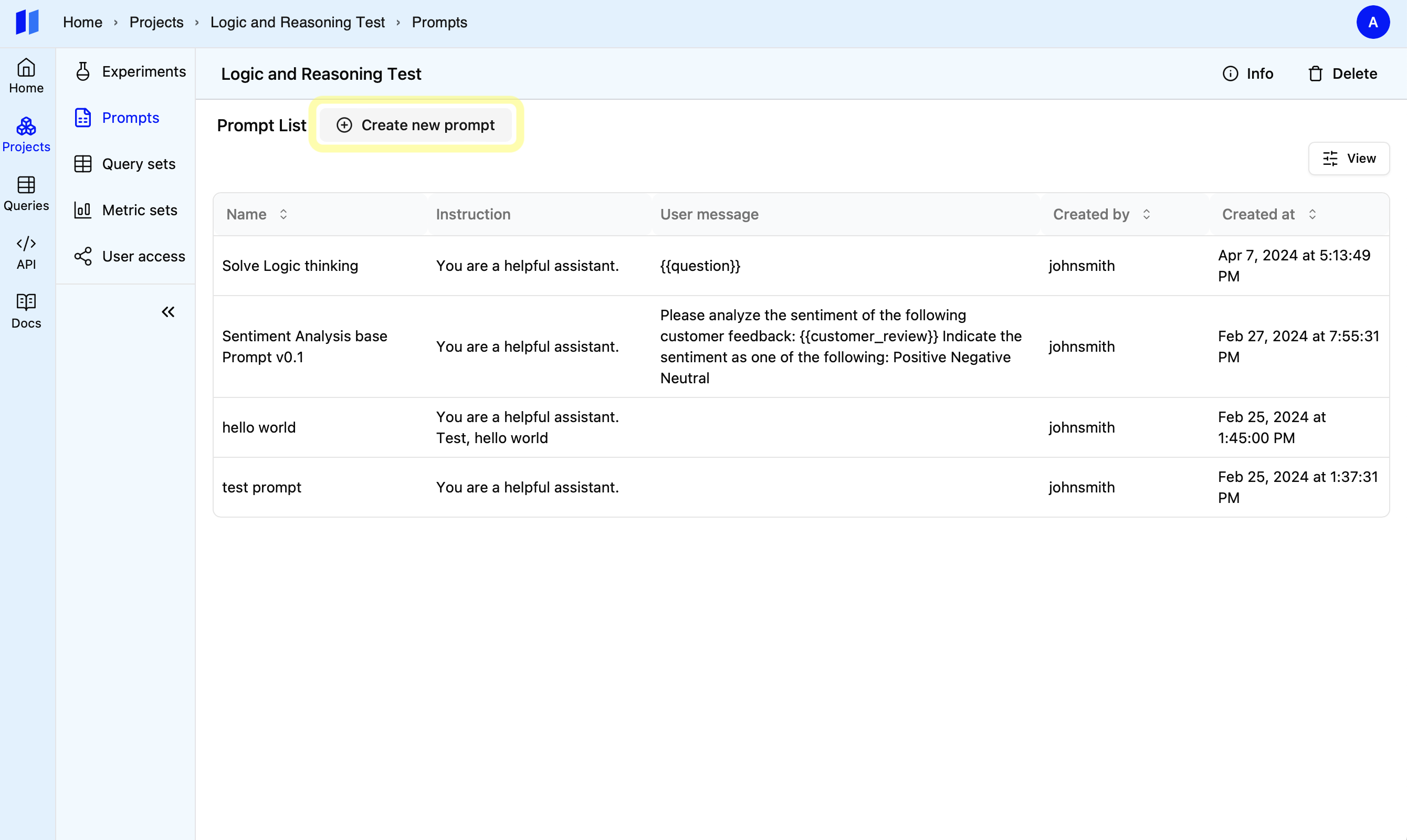
1. Click on the `Create new prompt` button. <br />
2. **Give it a Name:** Choose a descriptive name for your prompt. <br />
3. **(Optional) Add Details:** Provide a short description. <br />
4. **Set the Stage:** Write a system instruction to guide the AI's initial response.
   <img style={{ borderRadius: "0.5rem", border: "1px solid #E5E5E5" }} src="https://mintcdn.com/snowbell-84/TFBWUXB9zdCgLDNc/images/setup/prompt4.png?fit=max&auto=format&n=TFBWUXB9zdCgLDNc&q=85&s=ef8815691c13eb3facf0c14ad12c869a" width="2680" height="1600" data-path="images/setup/prompt4.png" />
   <img style={{ borderRadius: "0.5rem", border: "1px solid #E5E5E5" }} src="https://mintcdn.com/snowbell-84/TFBWUXB9zdCgLDNc/images/setup/prompt5.png?fit=max&auto=format&n=TFBWUXB9zdCgLDNc&q=85&s=dc9a042cf366427c9e3918e5d333e988" width="2680" height="1600" data-path="images/setup/prompt5.png" />

### Step 3: Craft Your Prompt

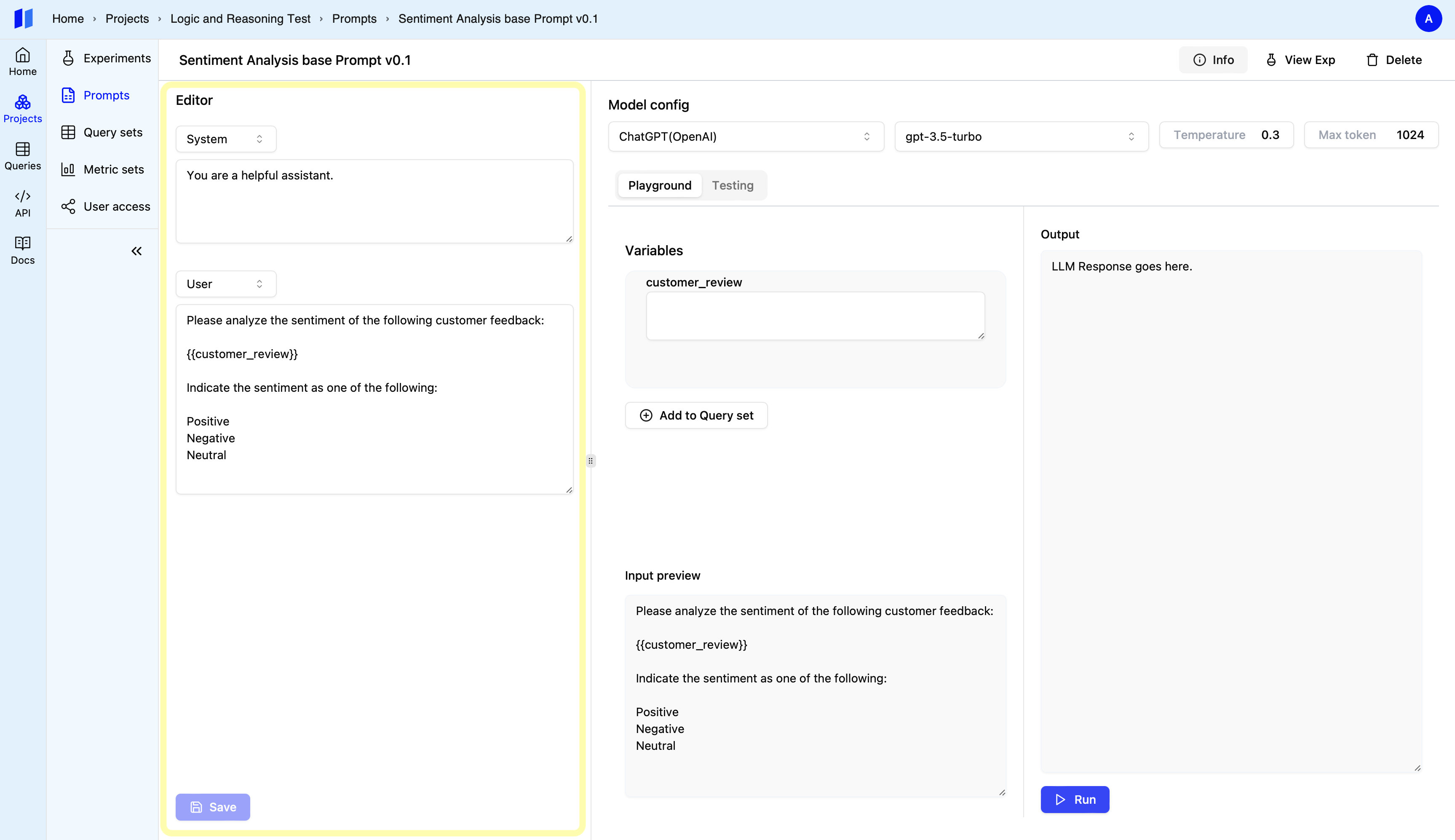
**Structure:** A prompt contains a system instruction & user message. <br />

1. The `System instruction` set the role and goal and high level context. <br />

2. The `user message` will specify the details such as input data format, output format instructions, rules and tones. <br />
   <img style={{ borderRadius: "0.5rem", border: "1px solid #E5E5E5" }} src="https://mintcdn.com/snowbell-84/TFBWUXB9zdCgLDNc/images/setup/prompt6.png?fit=max&auto=format&n=TFBWUXB9zdCgLDNc&q=85&s=5450af6c04b9a5633131d454b16e239b" width="3454" height="1994" data-path="images/setup/prompt6.png" />

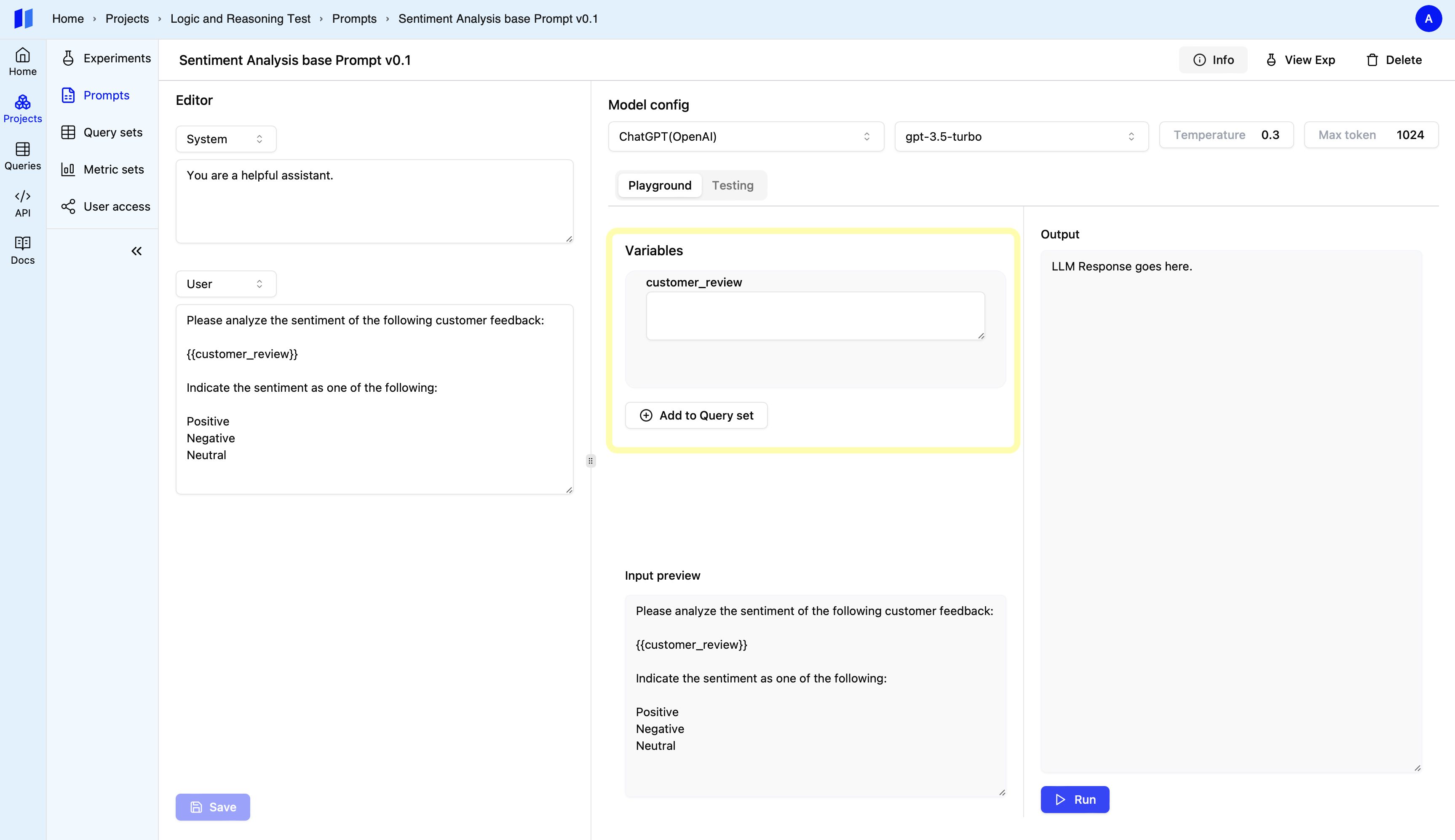
3. The `user message` supports `variables`. **Variables** incorporate custom variables
   surrounded by double curly braces, like `{{ customized_type }}
   `. <br />

* Variables act as placeholders for values you'll provide later. When using the prompt,
  provide the specific value you want to insert for the variable. <br />
* When running an experiment, the variables will be automatically inserted from
  your query set.
  <img style={{ borderRadius: "0.5rem", border: "1px solid #E5E5E5" }} src="https://mintcdn.com/snowbell-84/TFBWUXB9zdCgLDNc/images/setup/prompt7.png?fit=max&auto=format&n=TFBWUXB9zdCgLDNc&q=85&s=991c151030464deee7271744de376d89" width="3454" height="1994" data-path="images/setup/prompt7.png" />

### Step 4: Try out the prompt in Playground

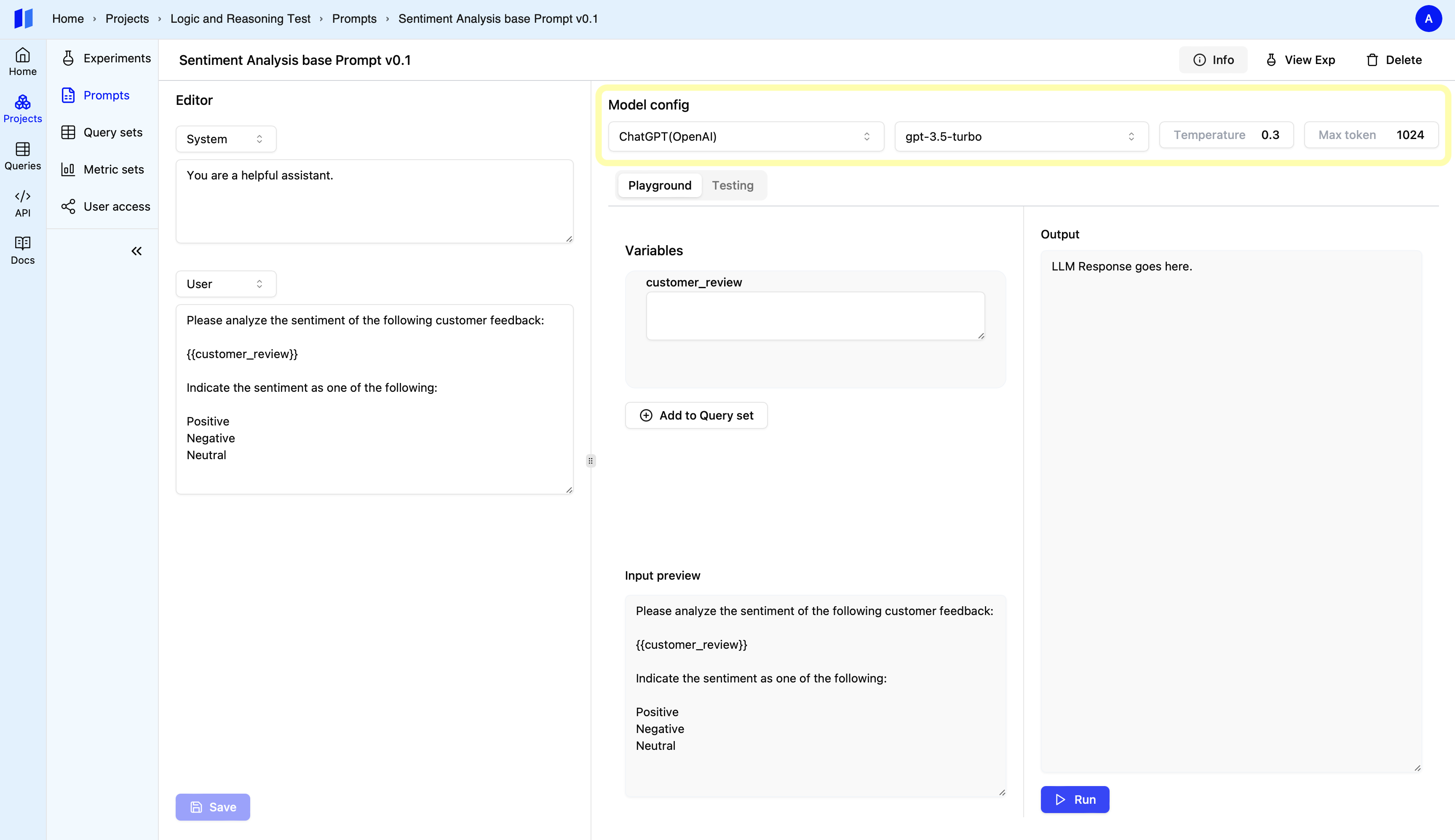
1. Choose API, model and parameters. <br />
   <img style={{ borderRadius: "0.5rem", border: "1px solid #E5E5E5" }} src="https://mintcdn.com/snowbell-84/TFBWUXB9zdCgLDNc/images/setup/prompt8.png?fit=max&auto=format&n=TFBWUXB9zdCgLDNc&q=85&s=d40be2b782e3fd6c084ec087e39ac019" width="3454" height="1994" data-path="images/setup/prompt8.png" />
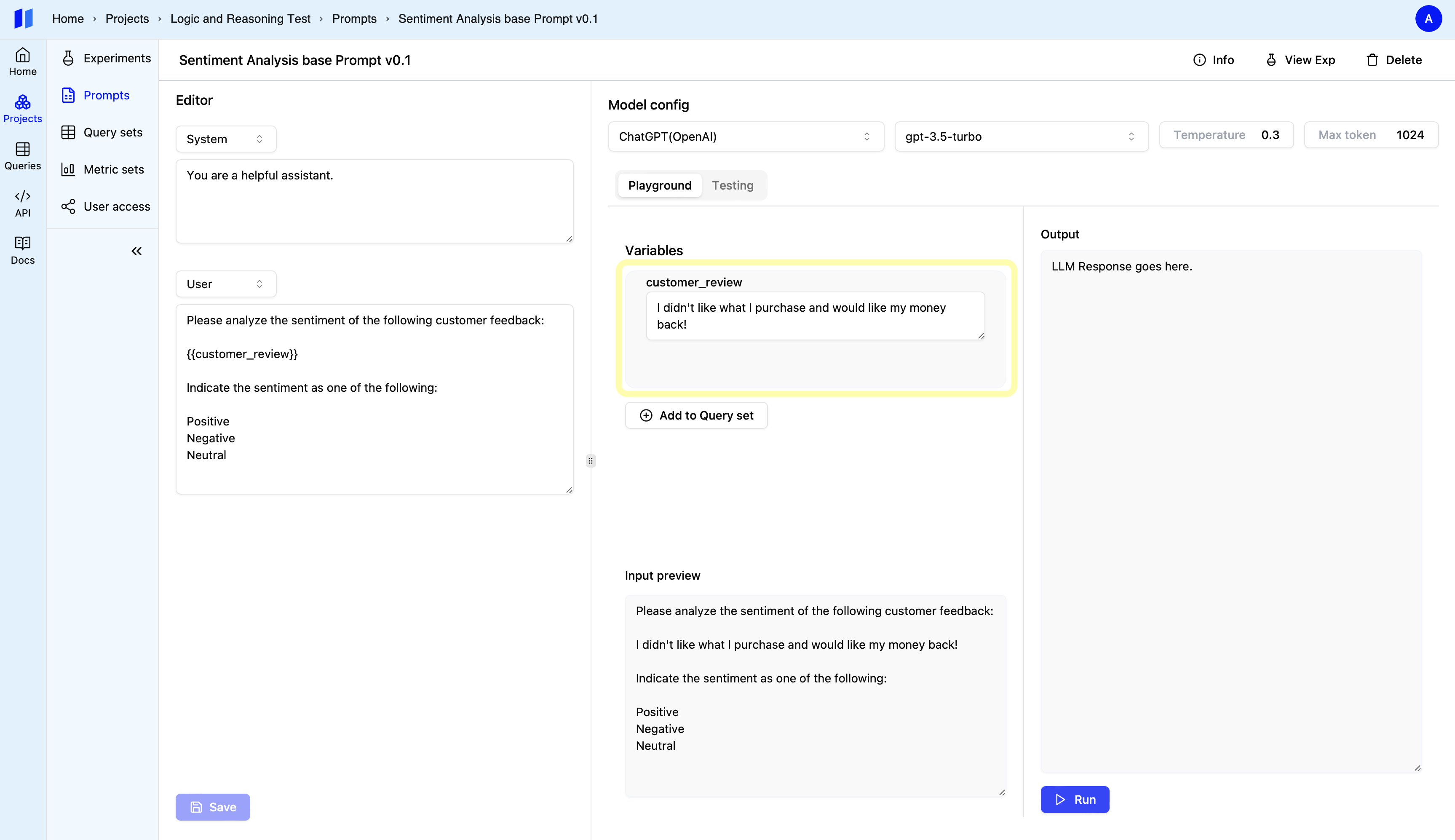
2. Fill the variables with test values. The variables will be incorporated into the “user message” and you can review the message in the “Input Preview” box. <br />
   <img style={{ borderRadius: "0.5rem", border: "1px solid #E5E5E5" }} src="https://mintcdn.com/snowbell-84/TFBWUXB9zdCgLDNc/images/setup/prompt9.png?fit=max&auto=format&n=TFBWUXB9zdCgLDNc&q=85&s=1726dc7dda15c0a65d2a0bf1d65e77ca" width="3454" height="1994" data-path="images/setup/prompt9.png" />
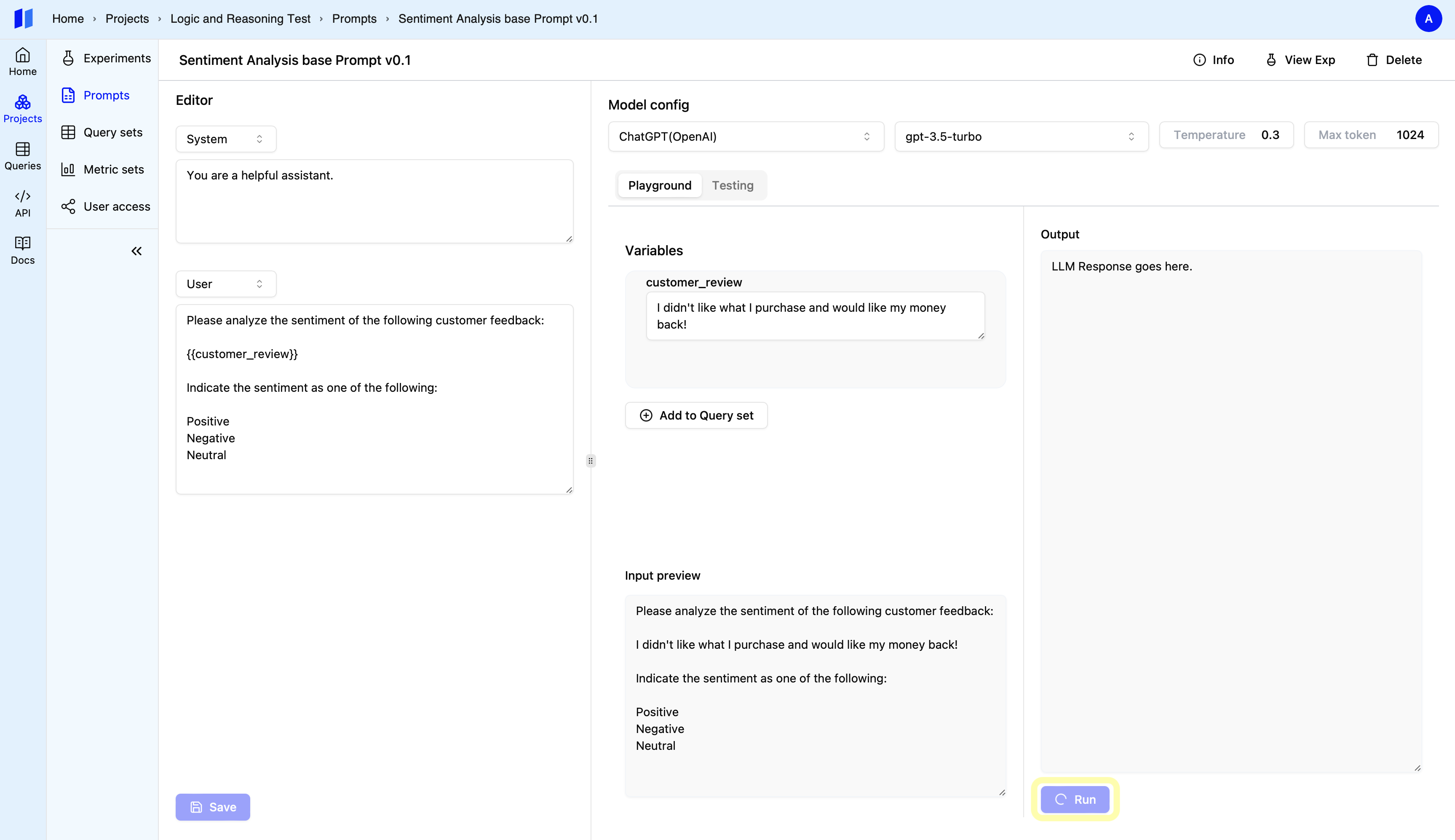
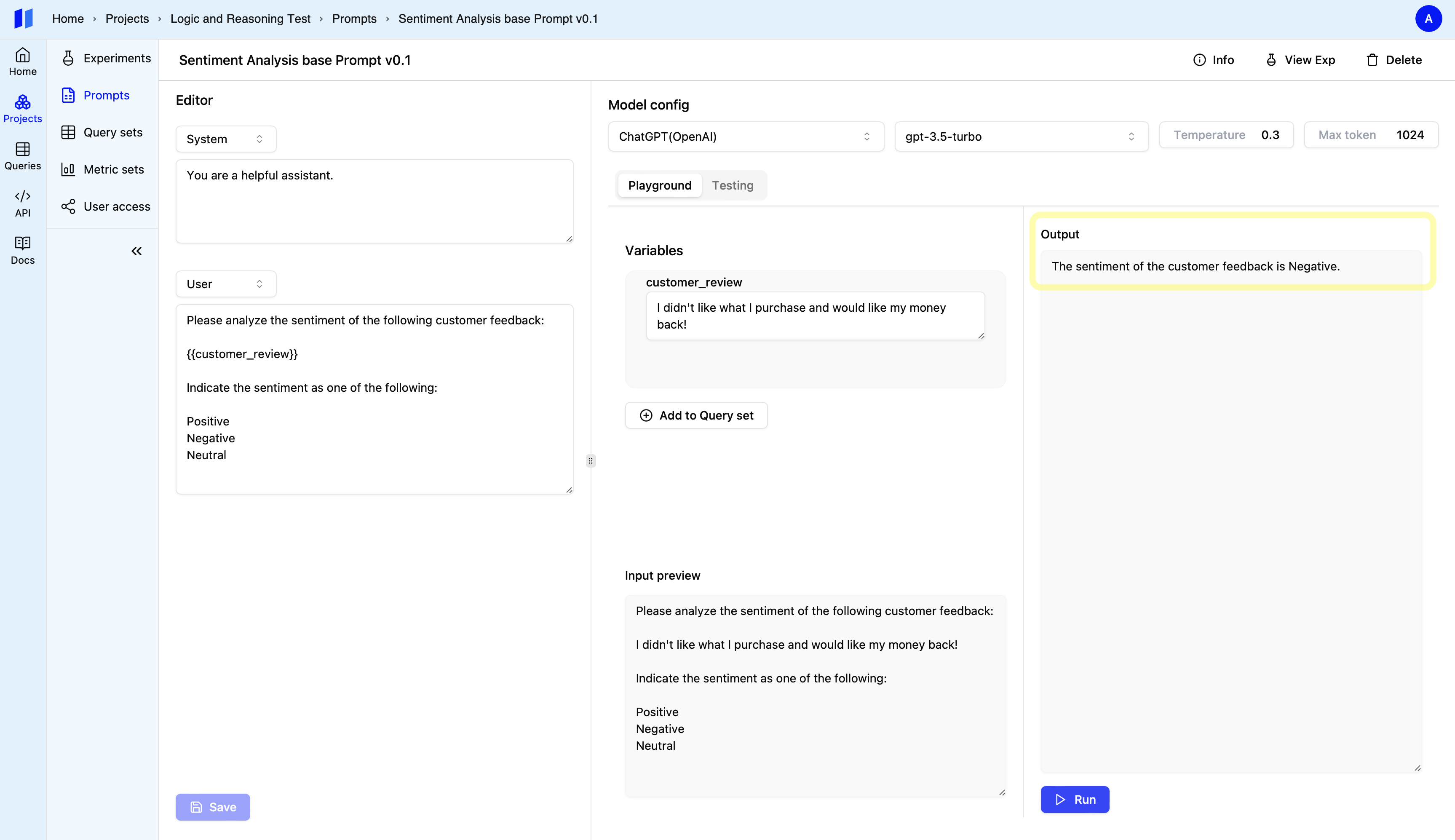
3. Click `Run` button. <br />
   <img style={{ borderRadius: "0.5rem", border: "1px solid #E5E5E5" }} src="https://mintcdn.com/snowbell-84/IqD-ZrpFGnQx3zFS/images/setup/prompt10.png?fit=max&auto=format&n=IqD-ZrpFGnQx3zFS&q=85&s=51cb1a508047febd00f0d74f7b66e482" width="3454" height="1994" data-path="images/setup/prompt10.png" />
   <img style={{ borderRadius: "0.5rem", border: "1px solid #E5E5E5" }} src="https://mintcdn.com/snowbell-84/IqD-ZrpFGnQx3zFS/images/setup/prompt11.png?fit=max&auto=format&n=IqD-ZrpFGnQx3zFS&q=85&s=5cc9ba91dbe03f6aee60f5204a52d84a" width="3454" height="1994" data-path="images/setup/prompt11.png" />